
AI meeting assistants: a privacy checklist before a bot joins your call
Consent, auto-join, training on transcripts, retention and sharing defaults: what to check before an AI notetaker records your meetings, in one list.
On this page9 sections
- Two ways to take notes, with different trade-offs
- 1. Consent comes first, and the law varies
- 2. Turn off auto-join, or narrow it
- 3. Find out whether your transcripts train a model
- 4. Know how long recordings are kept, and what delete means
- 5. Check the sharing defaults
- 6. Ask for the security report, not the badge
- 7. Plan for the exit
- The short version
An AI meeting assistant is one of the easiest AI tools to adopt and one of the hardest to undo. It connects to your calendar, joins or records your calls, and turns every conversation into a searchable transcript with a summary on top. That is the whole appeal. It also means a third party now holds a verbatim record of what your team, your clients and your candidates said, often including people who never agreed to the tool.
None of that makes these tools a bad idea. It makes the setup decisions matter more than the feature list. This checklist covers what to settle before the first recording, in the order it tends to go wrong.
Two ways to take notes, with different trade-offs
Meeting assistants capture audio in one of two ways, and the difference shapes everything below.
| Bot that joins the call | Recording on your own device | |
|---|---|---|
| How it works | A named participant joins the meeting and records it | An app captures your device's audio, with no extra participant |
| Who notices | Everyone sees the bot in the participant list | Nobody, unless you tell them |
| Consent | Visible, but easy to forget once it becomes routine | Entirely your responsibility |
| Where audio goes | Straight to the vendor's servers | Depends on the app: some process locally, many upload |
A visible bot is not consent on its own, and an invisible recorder is not a loophole. Whichever kind you choose, the obligations sit with the person who switched it on.
1. Consent comes first, and the law varies
Recording rules depend on where the participants are, not just where you are. In the US, most states allow a conversation to be recorded with one party's consent, but several, California among them, require everyone's. In the EU and the UK, a recording or transcript of identifiable people is personal data under GDPR, which means you need a lawful basis and you have to tell people it is happening. Many workplaces add their own policies on top.
The practical rule that keeps you on the right side of nearly all of them: announce the recording at the start of every call, give people a way to object, and do not record when someone does. This is not legal advice, and a sensitive context such as HR, health or legal matters deserves an actual lawyer's view.
2. Turn off auto-join, or narrow it
The default that causes the most trouble is the assistant that joins every meeting on your calendar automatically. That includes external calls, interviews, one-to-ones and meetings where you are a guest rather than the host. Check:
- whether auto-join is on by default after you connect your calendar;
- whether it can be limited to meetings you host, or to internal attendees only;
- whether the assistant can join a meeting you have declined or will not attend yourself.
An assistant that records a meeting you were not in is the scenario that produces the angry emails.
3. Find out whether your transcripts train a model
Read the privacy policy and the data processing terms for the sentence about model training. Look for three answers: whether your recordings and transcripts are used to improve the vendor's models, whether you can opt out, and whether the answer changes between free, team and enterprise plans. Also look for the list of subprocessors. A meeting assistant that summarises with a third-party language model passes your transcript to that provider, and their retention terms matter too.
4. Know how long recordings are kept, and what delete means
Ask how long audio, video and transcripts are kept by default, whether you can set a shorter period, and what happens when you press delete: removed immediately, removed after a grace period, or removed from the app but retained in backups for a while. If a client or a candidate asks you to delete their recording, you need an answer you can actually give them.
5. Check the sharing defaults
Many assistants email the summary to every participant after the call, or create a share link for the recording. Both are useful and both leak. Before your first sensitive meeting, check:
- who receives summaries automatically, and whether that includes external attendees;
- whether share links are public, company-only or invite-only by default;
- whether action items and highlights can be posted to chat channels on their own.
6. Ask for the security report, not the badge
"SOC 2" and "ISO 27001" logos on a landing page are claims. The evidence is the document behind them: a SOC 2 Type II report, which vendors usually share under a non-disclosure agreement, or an ISO/IEC 27001 certificate you can check with the body that issued it. Also check whether you can choose where data is stored, which matters if your contracts require EU hosting. For health information in the US, a vendor that will not sign a Business Associate Agreement is not an option for patient conversations, whatever its marketing says.
7. Plan for the exit
Transcripts become an archive quickly, and an archive is the hardest thing to move. Before you depend on one assistant, check that you can export transcripts and summaries in a standard format, and what happens to your recordings if you cancel or the product closes. Our post on the signs an AI tool is shutting down covers what to watch for.
The short version
Before the first recording:
- Decide how you will announce recordings, and announce them every time.
- Limit auto-join to meetings you host.
- Opt out of model training if the vendor allows it, and note what it says about subprocessors.
- Set the shortest retention period your work allows.
- Make summaries and share links internal by default.
- Get the security report if the meetings involve clients, candidates or health information.
To compare tools, browse the meeting assistants, meeting notes and transcription categories. Every card shows whether the site is up and what the plans cost, every tool page lists the trust checks behind its score, and our pre-signup checklist covers the questions to ask before you hand any AI tool your data.
Otter.ai
61Meeting transcription with per-plan minute and length caps
Meeting recorder that files notes into your CRM
Fathom
71Meeting recorder with instant summaries and CRM write-back
Granola
55Note-taker that merges your typing with the transcript
Read AI
57Meeting, email and message summaries in one feed
PrivacyMeetingsGuides
Every tool named here has a live catalog page — price, status and when we last checked it.
Browse the catalogFollow new posts via the RSS feed.
Keep reading
All posts →State of AI tools, October 2026: 3,264 tools, by the numbers
3,264 AI tools counted on October 13, 2026: domain ages, .ai against .com, how they charge, median prices by category, platforms, countries and shutdowns.
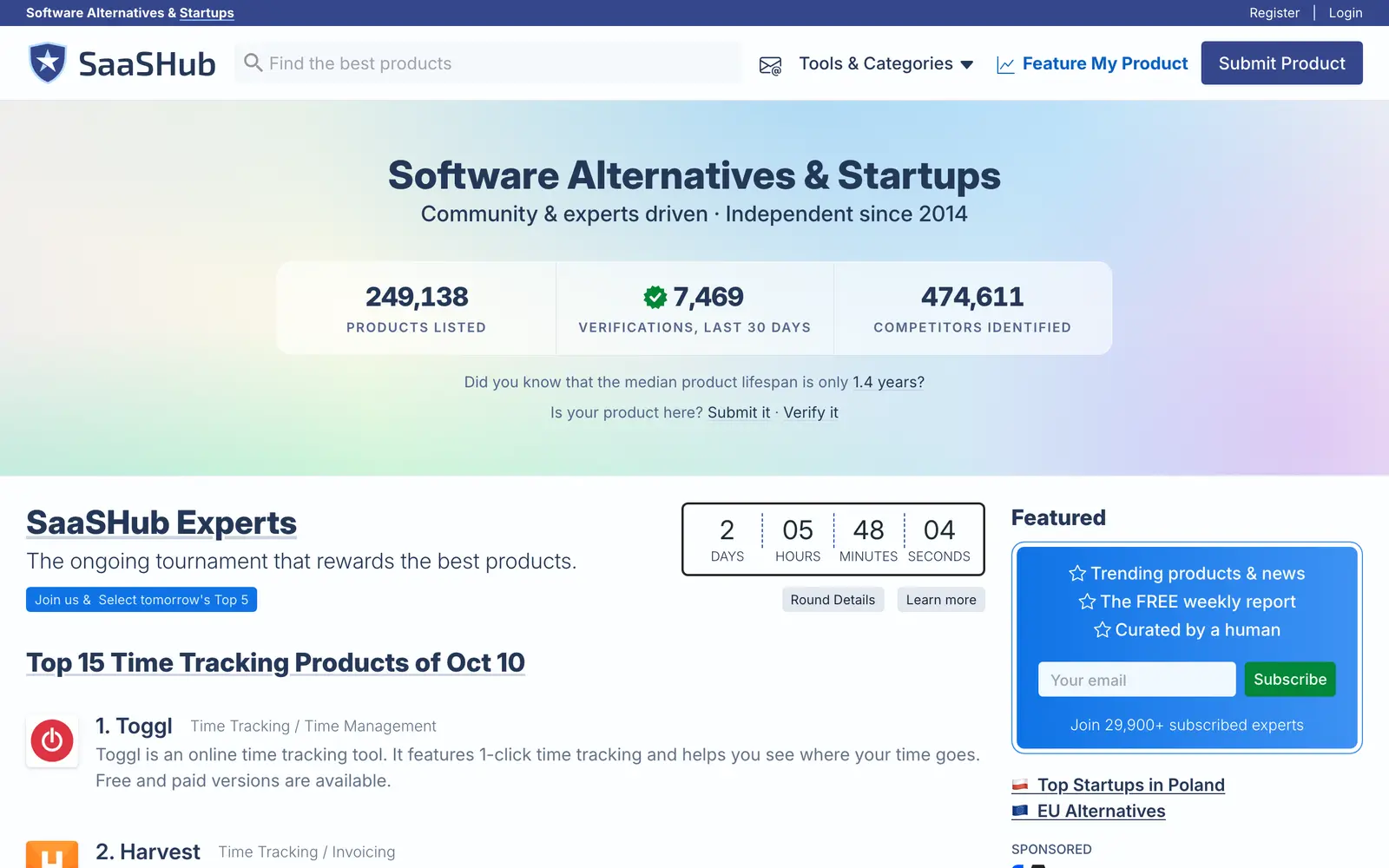
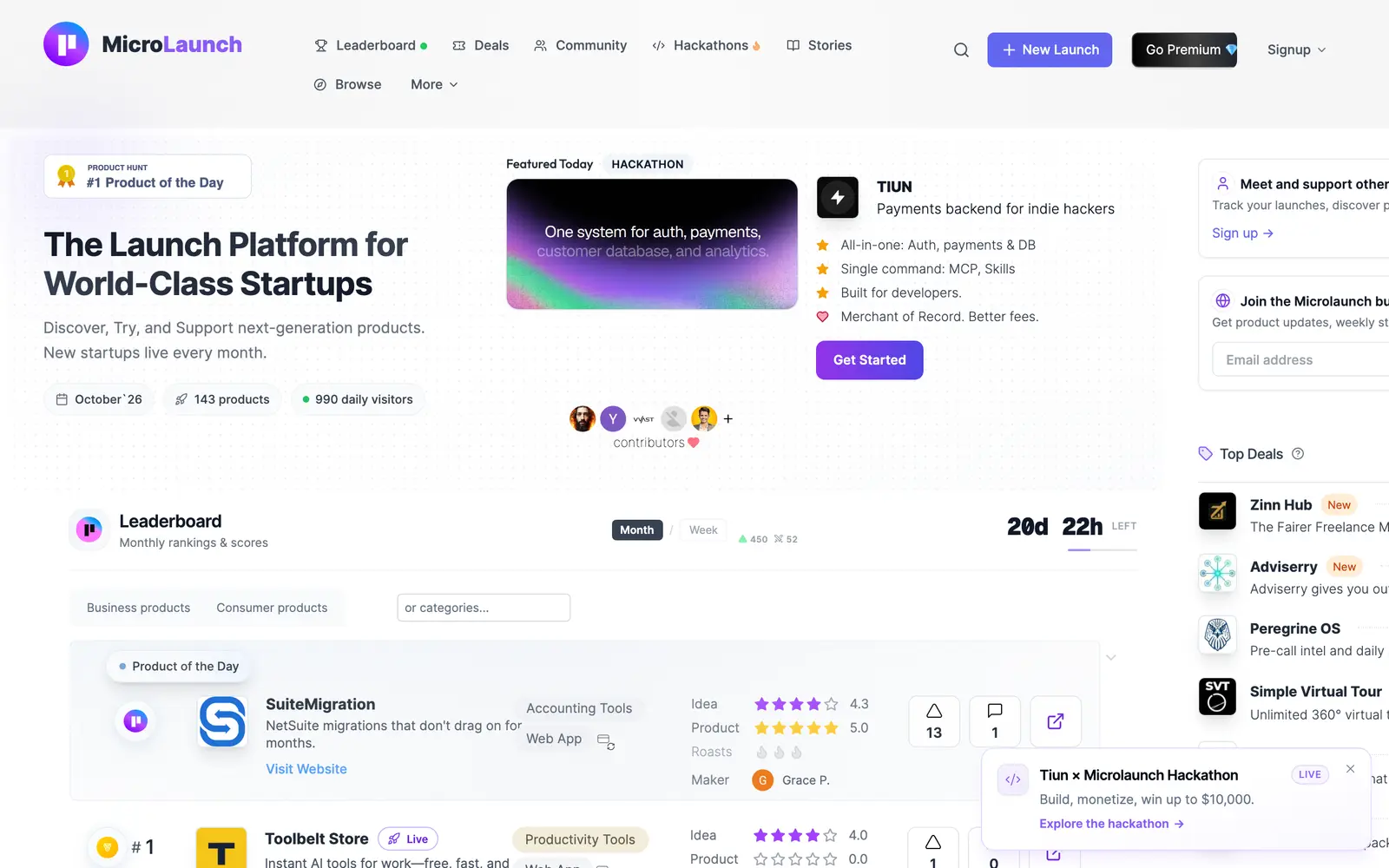
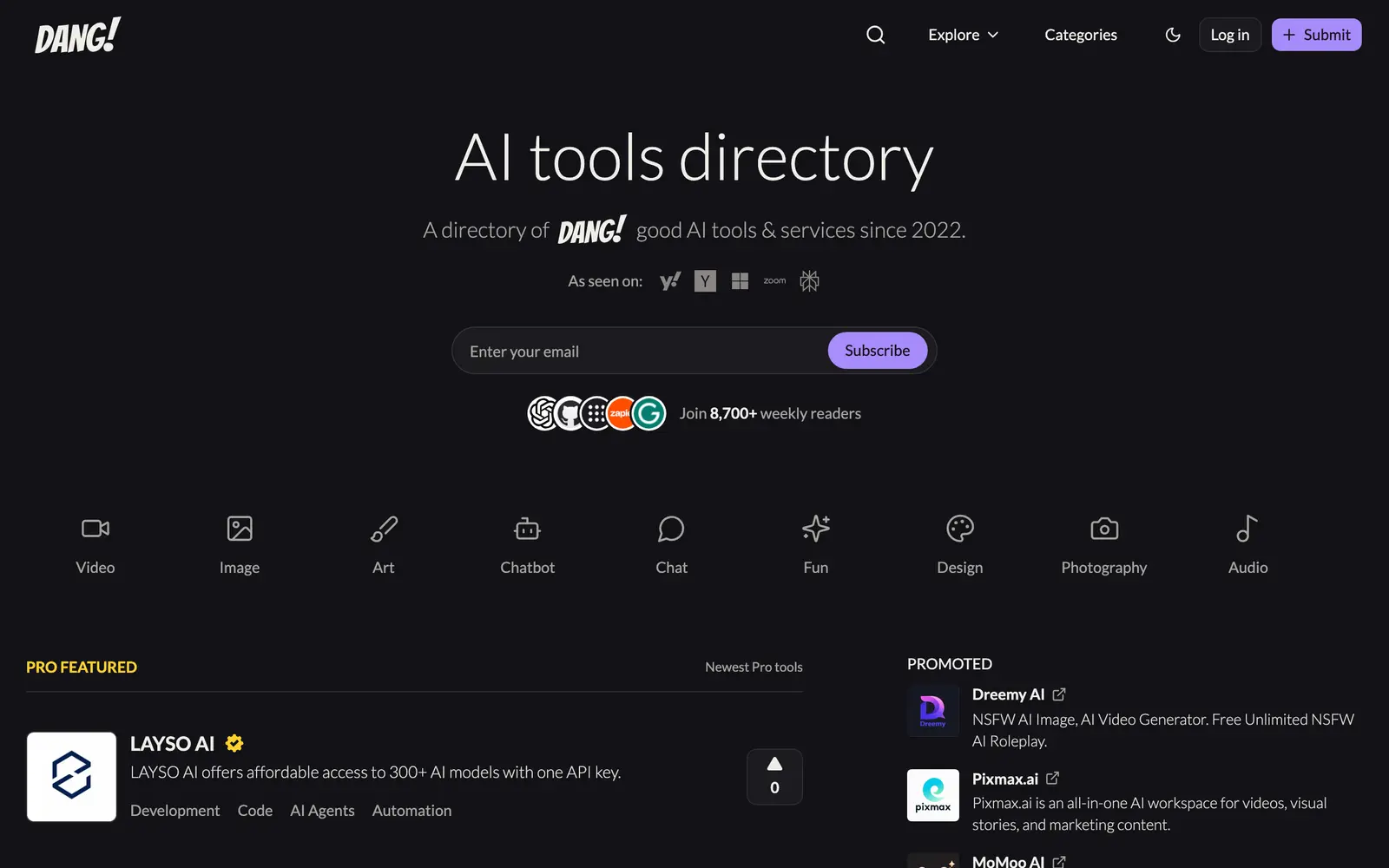
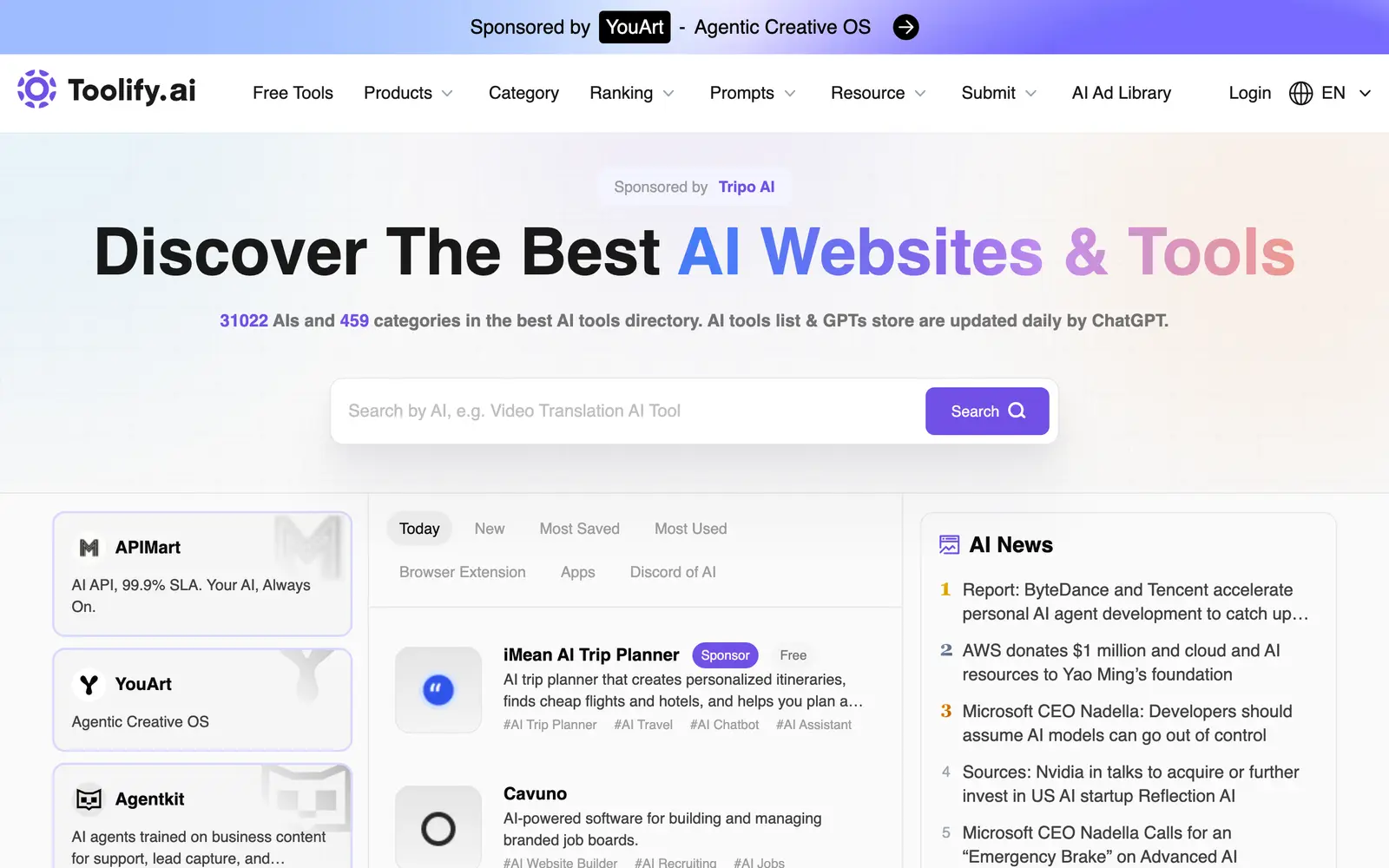
State of AI directories, October 2026: 110 places, by the numbers
110 AI directories and launch sites checked on October 10, 2026: who still lists for free, what a badge buys, median prices, queues, links and closures.
Do AI directory backlinks help SEO? Nofollow, sponsored and dofollow explained
What nofollow, sponsored and ugc mean, what Google says about paid links, and what 97 directories serve in their link tags. Checked October 10, 2026.